


 Italiano
The GiPStech MDK is primarily designed to operate when the phone’s screen is on and the app is running in the foreground.
Moreover, both Google and Apple discourage and actively limit apps that collect user location data in the background.
However, under specific conditions, it is possible to run localization in the background. This page explains how to achieve it, with different approaches for Android and iOS.
Android
Section titled “Android”The first step is to inform the MDK that it will be used in the background by enabling background mode:
GiPStech.setBackgroundMode(true);This allows the MDK to request sensor data from the Android OS even during Doze mode. However, enabling this feature may impact location performance.
Android sensors policy
Section titled “Android sensors policy”The GiPStech MDK relies on sensors such as the magnetometer, gyroscope, and accelerometer to deliver location services.
However, starting from Android 9 and later, background usage of these sensors is restricted, as detailed in Only gather sensor data in the foreground (opens in a new tab).
Using a foreground service
Section titled “Using a foreground service”Therefore, to use the GiPStech MDK in the background, you must first implement a foreground service, as shown in the following example:
class MyForegroundService : Service() {    private var wakeLock: PowerManager.WakeLock? = null
    override fun onBind(intent: Intent?): IBinder? {        return null    }
    override fun onStartCommand(intent: Intent?, flags: Int, startId: Int): Int {        // Acquire the partial wake lock        val pm = getSystemService(Context.POWER_SERVICE) as PowerManager        wakeLock = pm.newWakeLock(PowerManager.PARTIAL_WAKE_LOCK, javaClass.canonicalName).apply {            acquire()        }
        // TODO: Start location
        return START_STICKY    }
    override fun onDestroy() {        // TODO: Stop localization
        wakeLock?.release()        super.onDestroy()    }}
The service must be declared within the application section of your app’s manifest, as shown below:
<service android:name=".MyForegroundService" android:enabled="true" android:exported="false" android:stopWithTask="false" />The wakelock permission
Section titled “The wakelock permission”To prevent the app from being suspended when the user turns off the smartphone screen, a partial wake lock is acquired in the onStartCommand method.
Additionally, you must declare the android.permission.WAKE_LOCK permission in your AndroidManifest.xml and include the corresponding request in your permission handling code, as shown below:
import android.content.pm.PackageManagerimport android.os.Bundleimport android.Manifestimport android.widget.Toastimport androidx.activity.result.contract.ActivityResultContractsimport androidx.appcompat.app.AppCompatActivityimport androidx.core.content.ContextCompat
class MainActivity : AppCompatActivity() {    private val wakeLockPermission = Manifest.permission.WAKE_LOCK
    // Permission launcher to request WAKE_LOCK    private val requestPermissionLauncher =        registerForActivityResult(ActivityResultContracts.RequestPermission()) { isGranted ->            if (isGranted) {                startService()            } else {                Toast.makeText(this, "WAKE_LOCK permission denied", Toast.LENGTH_SHORT).show()            }        }
    override fun onCreate(savedInstanceState: Bundle?) {        super.onCreate(savedInstanceState)
        // Check if the WAKE_LOCK permission is already granted        if (ContextCompat.checkSelfPermission(this, wakeLockPermission) == PackageManager.PERMISSION_GRANTED) {            startService()        } else {            // Request the permission            requestPermissionLauncher.launch(wakeLockPermission)        }    }
    ...
Finally, when all permissions are granted, you can start the service as follows:
private fun startService() {    val intent = Intent(this, MyForegroundService::class.java).apply {        addFlags(Intent.FLAG_ACTIVITY_NEW_TASK)    }
    // Start the foreground service for Android 9 (API 26) and higher versions.    // Otherwise, start a "normal" service.    if (Build.VERSION.SDK_INT >= Build.VERSION_CODES.O) {        startForegroundService(intent)    } else {        startService(intent)    }}
The background location
Section titled “The background location”Android 10 introduces the new ACCESS_BACKGROUND_LOCATION (opens in a new tab) permission, which allows an app to access location data while running in the background.
If you request this permission, you must also request either ACCESS_COARSE_LOCATION or ACCESS_FINE_LOCATION, as ACCESS_BACKGROUND_LOCATION alone does not grant location access.
For apps that support one of the “Background Modes” capabilities, the system can launch or resume the app in the background to handle events related to these capabilities.
For instance, the system may start or resume the app to process a location update or perform a background fetch.
As of this writing, Xcode provides eight background modes:
- Audio, AirPlay, and Picture in Picture
- Voice over IP
- External accessory communications
- Acts as a Bluetooth LE accessory
- Remote notifications
- Background processing
- Location updates
- Uses Bluetooth LE accessories
- Background fetch
In this context, we will focus on the following two:
- Location updates
- Uses Bluetooth LE accessories
Both modes support operations already performed by the GiPStech MDK. It is recommended to enable both.
Adding background modes
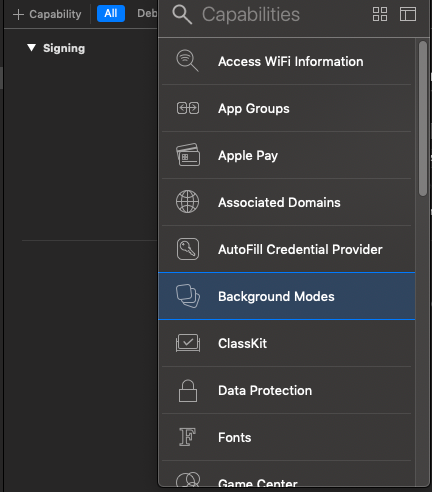
Section titled “Adding background modes”To enable background modes in your app project, follow these steps:
- Click on the project name in Xcode.
- Select the project target.
- Click the ”+” button under the Capabilities section.
- Double-click on Background Modes to add it to your project.
- Finally, enable Location Updates and Uses Bluetooth LE Accessories.
Bluetooth LE accessories
Section titled “Bluetooth LE accessories”To properly perform background scans, our project must use the CoreBluetooth framework and implement the CBCentralManagerDelegate methods as outlined in Core Bluetooth Background Processing for iOS Apps (opens in a new tab).
Currently, the GiPStech MDK utilizes the CoreBluetooth framework only for scanning Eddystone devices. As a result, at least one Eddystone device must be near your iPhone during background location tracking to keep the app running continuously. Otherwise, the app will be suspended.
Permissions description
Section titled “Permissions description”The app must include the necessary permission descriptions in its Info.plist file, as shown in the following example:
For iOS 13 and later:
Section titled “For iOS 13 and later:”<key>NSBluetoothAlwaysUsageDescription</key><string>Program requires GPS and Bluetooth</string><key>NSLocationAlwaysAndWhenInUseUsageDescription</key><string>Program requires GPS and Bluetooth</string><key>NSLocationWhenInUseUsageDescription</key><string>Program requires GPS and Bluetooth</string>For iOS versions earlier than 13:
Section titled “For iOS versions earlier than 13:”<key>NSBluetoothPeripheralUsageDescription</key><string>Program requires GPS and Bluetooth</string><key>NSLocationAlwaysAndWhenInUseUsageDescription</key><string>Program requires GPS and Bluetooth</string><key>NSLocationWhenInUseUsageDescription</key><string>Program requires GPS and Bluetooth</string>Other important notes
Section titled “Other important notes”On the first launch, the user must grant the app “Always” location access and permission for Bluetooth scanning.
Starting from iOS 13, the “Always” location access prompt is no longer displayed during the initial launch. Instead, it appears the first time the app runs in the background. When prompted, the user must allow “Always” location access to ensure proper functionality.
Additionally, it is crucial that the app starts GiPStech localization before transitioning to the background state.